


To use a laptop with the lid closed, you need to change the power settings so the system keeps running instead of sleeping, then connect an external display, keyboard, and mouse. On Windows, that means setting the lid close action to Do nothing in the power plan, and on macOS it means keeping the system awake with a connected display and power adapter.
The setting itself is simple, but the details matter. Heat builds up differently when the lid is shut, and some laptops handle closed lid operation better than others. I based this guide on manufacturer manuals and spec sheets, published standards such as USB-C and DisplayPort, and widely documented PC practice.
When to Use a Closed Lid and Why It Matters
A closed lid setup makes sense when your laptop is acting as a desktop replacement. You get a larger monitor at eye level, a full keyboard, and a mouse, while the laptop sits out of the way on a stand or in a vertical holder. It keeps your desk cleaner and reduces the number of screens competing for attention.
The reason it matters is that laptops are designed to sleep when the lid closes. That behavior saves battery and prevents accidental input, but it also stops your work, downloads, and external monitor signal. Changing the lid action tells the machine to keep running, and that is the core of the whole process.
Not everyone needs this. If you only close the lid when you leave the desk, leave the default sleep behavior alone. If you use the laptop screen as a second display, a closed lid removes that option. The setup suits people with an external monitor, a dock, and a separate keyboard, and it is less useful for anyone who moves the laptop frequently.
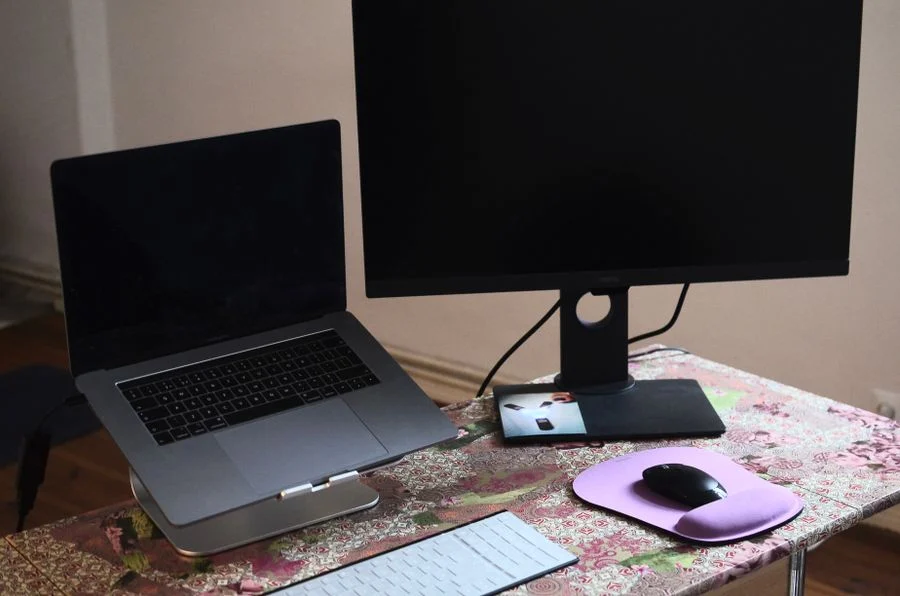
What You Need Before You Start
Gather the hardware and check your laptop's manual before changing settings. The exact menu names vary by Windows version and macOS release, and the lid behavior can also be limited by the manufacturer's power management software.
- An external monitor and the correct cable for its port (HDMI, DisplayPort, or USB-C with DisplayPort Alt Mode).
- A USB or Bluetooth keyboard and mouse, so you are not reaching for the laptop's built-in input.
- The power adapter the manufacturer specifies, because most laptops will not stay fully awake on battery with the lid closed.
- A laptop stand or vertical holder that keeps the vents clear, which you can compare in my roundup of laptop stands for desk ergonomics.
- A docking station if you want one cable for display, power, and peripherals, covered in my roundup of docking stations for dual monitors.
- The laptop's manual or support page, since some models restrict closed lid operation in the BIOS or vendor utility.
Check the vents and the hinge area before you start. A laptop that already runs warm on an open desk will run warmer with the lid shut, and blocking the rear vents makes that worse. If the battery is swollen, stop here and see the safety note in the mistakes section.
Step by Step: Set Up Closed Lid Operation
- Connect power and the external display first. Plug in the charger the maker specifies, then connect the monitor with the correct cable. Confirm the monitor shows a signal before you change any settings, so you know the display path works.
- Open the power settings on Windows. Go to Settings, then System, then Power and battery (or Power and sleep on older builds), and open Additional power settings. In Control Panel, choose Choose what closing the lid does from the left panel.
- Set the lid action to Do nothing. Under When I close the lid, set both On battery and Plugged in to Do nothing if you want the system to keep running. If you only need this at the desk, set Plugged in to Do nothing and leave On battery as Sleep to save power when you unplug.
- Set the sleep and display timers. In the same power plan, set Put the computer to sleep to Never while plugged in, and set Turn off the display to a time that suits you. The display can turn off without stopping the system.
- On macOS, connect the display and power adapter. Apple's supported method for closed lid use requires an external display, a keyboard, and a mouse, plus a power connection. Wake the Mac, then close the lid and press a key or click the mouse to wake the external display.
- Check the vendor utility. Some laptop makers ship their own power software that overrides Windows settings. Open it and look for a lid or dock setting, and set it to match your preference.
- Test the setup. Close the lid and confirm the external monitor stays on, the keyboard and mouse respond, and any downloads or calls continue. If the laptop sleeps, reopen the lid and recheck the lid action and the vendor utility.
- Watch the first long session. Run a normal work session with the lid closed and feel the underside and the vent area afterward. If the chassis is hot to the touch or the fans stay at full speed, improve airflow or reconsider the closed lid setup.
The exact labels differ between Windows 10 and Windows 11, and macOS changes its energy settings between releases. If a menu name does not match, search the manufacturer's support page for your model and OS version rather than guessing.

Common Mistakes to Avoid
- Leaving the laptop on battery with the lid closed. Many laptops will still sleep or throttle on battery, and the battery drains faster in a confined space. Keep the specified charger connected for desk use.
- Blocking the vents with a stand or a closed drawer. A closed lid already traps heat near the keyboard. A stand that covers the rear or bottom vents makes it worse, so choose a holder that leaves the airflow path open.
- Ignoring a swollen or overheating battery. A swollen, punctured, or overheating lithium-ion battery is a fire risk. Stop using and charging the device, do not puncture or press on the battery, and take the old battery to a battery recycling drop-off rather than the trash.
- Using a third-party charger that does not match the maker's spec. The wrong charger can cause slow charging, shutdowns, or damage. Use the charger the manufacturer specifies for your model.
- Assuming the setting works the same on every platform. Windows, macOS, and vendor utilities can each override the others. Check all three if the laptop keeps sleeping, and check the manufacturer terms if you are unsure about warranty coverage.
When to Get Help
Most closed lid problems are settings issues, but a few deserve a technician or the manufacturer. If the laptop shuts down instead of sleeping, smells hot, or shows a bulging bottom panel, stop using it and contact the maker's support. Battery swelling is a safety issue, not a settings issue.
If the external monitor stays black only when the lid is closed, the display or dock may need a firmware update, or the laptop may not support closed lid output on that port. The manufacturer's manual and the dock documentation are the right sources. For warranty and software licensing questions, read the manufacturer or software publisher terms rather than relying on forum posts.
Frequently Asked Questions
Can I use my laptop with the lid closed without an external monitor?
It will keep running if you set the lid action to Do nothing, but you will have no display and no built-in keyboard access. Most people use a closed lid setup with an external monitor, keyboard, and mouse, and some laptops limit closed lid operation without a display connected.
Does closing the lid damage the laptop?
Normal closed lid use does not damage a healthy laptop, but heat is the concern. The lid traps warm air near the keyboard, so keep the vents clear and watch the chassis temperature during long sessions. A swollen or overheating battery is a fire risk, so stop using and charging the device.
Why does my laptop still sleep when I close the lid?
A vendor power utility, a BIOS setting, or a Windows or macOS update can override the lid action. Check the manufacturer's power software, then the BIOS, then the OS power plan. On macOS, closed lid use also requires a connected display and power adapter.
Should I leave the charger plugged in with the lid closed?
Yes for most desk setups, because many laptops will not stay fully awake on battery with the lid shut. Use the charger the manufacturer specifies. If you only need closed lid operation occasionally, set the plugged in lid action to Do nothing and leave the battery action as Sleep.
Final Thoughts
The single most important step is setting the lid close action to Do nothing while the laptop is plugged in, then confirming the external display and peripherals work with the lid shut. Everything else, from the stand to the dock, supports that basic change.
Keep the vents clear, use the specified charger, and treat any battery swelling as a stop signal. A closed lid desk setup is a practical choice when you set it up deliberately.

