


A Chromebook is the better pick if nearly everything you do lives in a browser, and a laptop is the better pick if you need full desktop programs, heavy local storage, or specialized Windows or macOS software. The choice comes down to your software list and how much you depend on working offline.
The two devices look similar on a shelf, but they are built around different assumptions. A Chromebook assumes a constant connection and a Google account, while a laptop assumes you install and run programs locally. I based this guide on manufacturer manuals and spec sheets, published standards, and widely documented computing practice, so you can match the machine to your actual routine instead of the marketing around it.
Chromebook vs Laptop at a Glance
The table below compares the two options across the criteria that matter most for a buying decision. Treat it as a starting filter, then read the sections below for the trade-offs behind each row.
| Criterion | Chromebook | Laptop |
|---|---|---|
| Operating system | ChromeOS, browser first | Windows or macOS, app first |
| Software you can install | Web apps and Android apps from the store | Full desktop programs from publishers and stores |
| Offline work | Limited, depends on app and sync | Broad, most programs run without a connection |
| Local storage | Small internal storage is common | Larger drives and external storage options |
| Ports and expansion | Usually USB-C and a few basics | Wider mix of USB, video, and card slots |
| Repairs and upgrades | Sealed design, limited service options | Often serviceable, some parts replaceable |
| Setup and upkeep | Sign in and go, updates in background | Driver and update management is on you |
| Typical owner | Browser and cloud tasks | Mixed local and professional work |

Software and Offline Work Are the Real Divide
Start by listing the programs you open every week. If that list is a browser, an email client, and a video call, a Chromebook covers it. If it includes desktop editing suites, accounting packages, CAD tools, or platform specific utilities, a laptop is the practical choice.
ChromeOS runs web apps well and can install Android apps from the Play Store where the maker supports it. That covers a lot of casual and student work, but it is not the same as running a full desktop application. Check the publisher's own system requirements before you assume an app will work, and remember that software licensing terms come from the publisher, not the hardware maker.
Where Offline Use Changes the Answer
A Chromebook is happiest with a connection. Many apps cache some content, but the experience degrades when you are on a plane, in a basement office, or on a weak hotel network. A laptop runs most of its programs locally, so a dropped connection does not stop your work.
- Choose a Chromebook if your files live in cloud storage and you are rarely offline for long.
- Choose a laptop if you travel to places without reliable Wi-Fi or need to work on local files for hours.
- Check whether your key apps have offline modes before you commit either way.
Hardware Ports Storage and Repairs
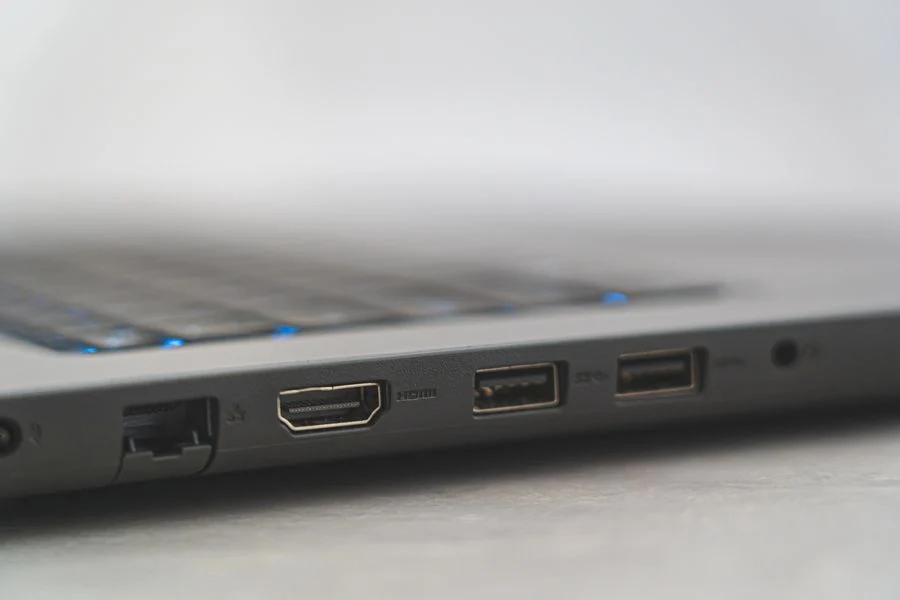
Chromebooks tend to be sealed and slim, with USB-C handling charging and video output and only a couple of other ports. Laptops usually offer a wider mix: more USB-A, a full size HDMI or DisplayPort output, and sometimes a card reader. If you plug in a monitor, a camera, and a headset every day, count the ports before you buy and plan for a hub if needed.
Storage is the other quiet difference. Many Chromebooks ship with small internal storage because the design assumes cloud files, while laptops commonly offer larger drives and easier external storage. Neither approach is wrong, but the Chromebook model pushes you toward cloud subscriptions and the laptop model pushes you toward local backups.
Service and Battery Care
Chromebooks are often harder to service because of sealed chassis and limited part availability, so check the maker's warranty terms before you buy. Laptops vary widely too, and some models are far easier to open than others. For either device, a swollen, punctured, or overheating lithium-ion battery is a fire risk: stop using and charging it, never puncture or press on the battery, and use only the charger the maker specifies. Take old batteries to a battery recycling drop-off rather than the trash.
If a simple, low maintenance device matters more than upgrade potential, a Chromebook suits you. If you want to replace a drive or add memory later, confirm the service manual first, because not every laptop allows it.
Setup Updates and Everyday Upkeep
A Chromebook is quick to set up: sign in with a Google account and your apps and files appear. Updates arrive in the background and usually apply on restart. That simplicity is the main reason people who dislike computer maintenance gravitate to ChromeOS, and it is also why a Chromebook can work well as a second machine for light tasks.
A laptop asks more of you. You manage operating system updates, driver updates, antivirus settings where applicable, and the software you install. In return you get flexibility: you can run older programs, connect specialized peripherals, and choose between Windows and macOS based on the software you need. If you are setting up a simpler machine for an older relative, my roundup of Chromebooks For Seniors covers the features that make daily use easier.
Privacy and account terms differ between platforms, so read the manufacturer and software publisher terms rather than relying on general advice. Neither approach is automatically more private; it depends on the services you sign into and the settings you choose.
Which One Should You Choose
Use your software list, your offline needs, and your appetite for maintenance as the deciding factors. The right answer is the machine that runs what you actually open, not the one with the longer feature sheet.
Choose a Chromebook If:
- Your work happens in a browser, email, and video calls.
- You keep files in cloud storage and are usually connected.
- You want fast setup and minimal maintenance.
- You want a light second machine for browsing, notes, and streaming.
- You do not need specialized desktop software.
Choose a Laptop If:
- You need full desktop programs for work, school, or creative projects.
- You work offline for long stretches or keep large local files.
- You connect monitors, cameras, and other peripherals regularly.
- You want the option to upgrade storage or memory where the model allows it.
- You prefer Windows or macOS for compatibility with your existing tools.
A common mistake is buying a Chromebook for a task that needs a desktop program, then discovering the gap after the return window. Another is buying a heavy laptop for light browser work and resenting the upkeep. Match the device to the task and you avoid both.
Frequently Asked Questions
Can a Chromebook run Microsoft Office?
A Chromebook can use the web versions of Office apps and, on supported models, Android versions, but the full desktop suite is a Windows and macOS product. Check the publisher's current system requirements and licensing terms before you rely on it for work.
Is a Chromebook good for college?
A Chromebook works for many college tasks such as browser research, documents, and video classes, but some majors require desktop software that ChromeOS cannot run. Confirm your program's software list before you buy, and check whether exams need a specific platform.
Do Chromebooks need antivirus software?
ChromeOS is designed around sandboxed apps and background updates, so most owners do not add separate antivirus software. Keep the device updated, use a strong account password, and review the permissions you grant to installed apps.
How long does a Chromebook last?
Useful life depends on the model, build quality, and how long the maker provides software updates, which varies by device. Check the maker's update policy for the specific model before buying, and treat battery wear as the most likely long term limit.
Final Thoughts
The single most important takeaway is that your software list decides this comparison, not the hardware specs on the box. If everything you do runs in a browser, a Chromebook keeps life simple; if you need desktop programs or long offline sessions, a laptop earns its extra upkeep.
Write down the programs and offline tasks you rely on, then pick the machine that covers them without workarounds.

