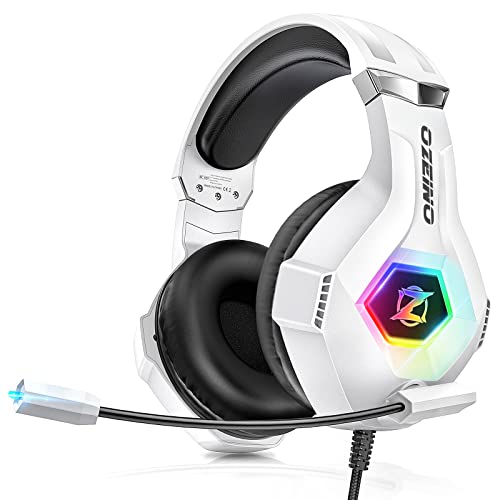


If your headset mic is not working on PC, start by checking the physical connection and the default input device, since those two causes account for most silent microphones. Confirm the plug is in the correct jack or USB port, then open your sound settings and make sure the headset is selected as the recording device rather than your webcam or laptop mic.
The rest of the fix depends on your platform and how the headset connects. Windows and macOS handle privacy permissions and device selection differently, and a USB headset behaves differently from a 3.5 mm one. Work through the steps below in order, and stop as soon as the mic comes back.
Why a Silent Mic Is Worth Fixing Properly
A microphone that cuts out mid-call or drops out in a game is more than an annoyance. You end up repeating yourself, teammates miss callouts, and meetings run long. Most of the time the headset itself is fine and the problem sits in a setting, a cable, or a permission you can change in a few minutes.
It also pays to fix the cause rather than the symptom. Replugging the headset every time works until it does not, and switching to the laptop mic hides a configuration problem you will hit again. A proper fix means the right device is selected, the drivers are current, and the apps you use are allowed to hear you.
One honest note on sourcing: I based this guide on manufacturer manuals and spec sheets, published standards such as USB and the CTIA headset plug standard, and widely documented PC building practice. I have not run lab tests on any specific headset, so treat the steps as a diagnostic order rather than a product verdict.
If you are shopping for a replacement while you troubleshoot, my roundup of wireless gaming headsets for PS5 covers the console side of the same connection questions.
What You Need Before You Start
You do not need special tools for this. Gather the basics so you can work through the steps without leaving your desk, and keep the headset manual nearby if you have it.
- Your headset and its cable, plus any USB adapter or splitter that came with it.
- A second device you can plug the headset into, such as a phone or another computer, to compare behavior.
- Access to your operating system sound settings and privacy settings.
- The manufacturer manual or support page for your headset model.
- A quiet room, so you can hear whether the mic is picking up anything at all.
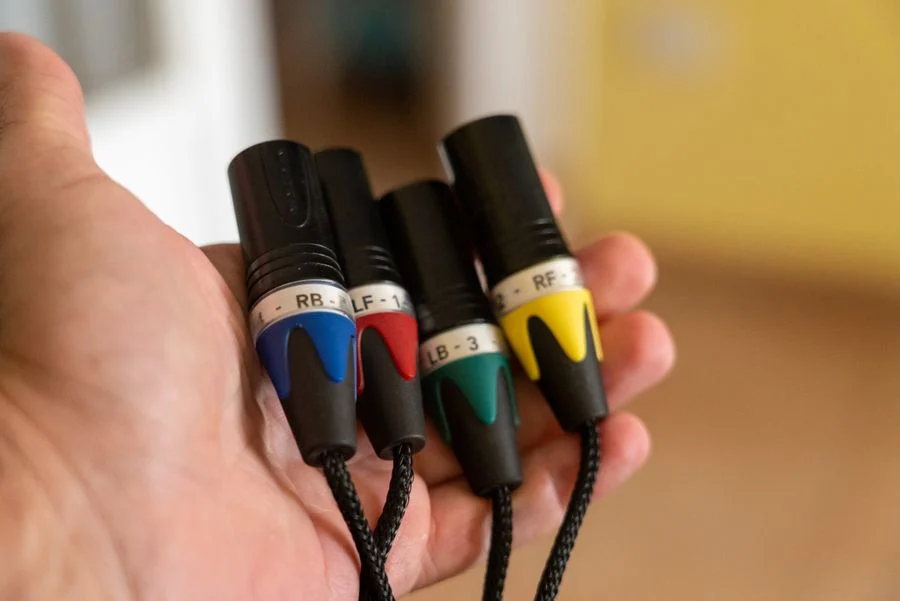
Know your connection type before you begin. A single 3.5 mm plug with four contacts carries both audio and mic, while two separate plugs split them into headphone and microphone jacks. USB and wireless headsets skip the analog jacks entirely, which changes which settings you touch.
Step by Step Fixes to Try in Order
Work down this list from the simplest check to the more involved ones. After each step, speak into the mic and watch the input level meter in your sound settings or in a voice app to see whether anything changed.
- Check the plug and the jack. Push the 3.5 mm plug fully into the correct port, which on most desktops is the pink or mic-labeled jack. If your headset has two plugs, match the headphone plug to the green jack and the mic plug to the pink one. A plug that is one notch out is the most common cause of a dead mic.
- Try a different port or adapter. Move a USB headset to another USB port, preferably one directly on the PC rather than a hub. If you use a USB-C to 3.5 mm adapter, swap it, because some adapters pass audio but not microphone input.
- Set the headset as the default input device. In Windows, open Settings, go to System, then Sound, and choose your headset under Input. In macOS, open System Settings, go to Sound, then Input, and select the headset. Confirm the level meter moves when you speak.
- Raise the input volume and unmute the mic. Check the input slider in sound settings and look for a physical mute switch or a mute button on the headset cable or earcup. Many headsets mute in hardware, and the operating system cannot override that.
- Allow microphone access in privacy settings. On Windows, go to Settings, Privacy and security, Microphone, and turn on access for your apps. On macOS, open System Settings, Privacy and Security, Microphone, and enable the app you are using. An app that was denied permission shows silence even when the hardware works.
- Pick the right device inside the app. Voice and game apps often keep their own audio settings. Open the app settings, find the input or microphone menu, and select the headset explicitly instead of leaving it on Default.
- Update or reinstall the audio driver. Open Device Manager on Windows, expand Audio inputs and outputs and Sound controllers, and update the relevant entries. For USB headsets, check the manufacturer support page for a current driver or firmware utility.
- Restart the audio service or the PC. On Windows, restarting the Windows Audio service in Services can clear a stuck device. A full restart is still the fastest way to reset a headset that stopped working after a sleep cycle.
- Check the headset on another device. Plug it into a phone or a second computer and record a short voice memo. If the mic is silent everywhere, the problem is in the headset or its cable, not your PC settings.
If the mic works on another device but not your PC, go back through the device selection and privacy steps, since those are the settings that differ between machines. If it fails everywhere, move on to the cable and hardware checks below.
Common Mistakes That Keep the Mic Silent
These are the errors that send people back to step one over and over. Avoid them and the fix usually sticks.
- Leaving the wrong default device selected. Windows and macOS both fall back to the laptop or webcam mic when the headset is unplugged and do not always switch back. Set the headset explicitly and check it after every replug.
- Missing the hardware mute. A mute switch on the cable or earcup overrides every software setting, so no amount of driver work will help until you flip it back.
- Using the wrong splitter or adapter. A headphone-only adapter or a TRS plug in a TRRS jack can pass sound to your ears while blocking the mic signal. Match the adapter to the headset's plug type.
- Ignoring app-level permissions. A privacy block in the operating system or a denied permission inside a voice app produces total silence that looks like dead hardware. Check both layers.
- Skipping the cross-device check. Without trying the headset elsewhere, you cannot tell a PC setting from a broken mic, and you may replace working gear or keep troubleshooting a dead cable.
When to Contact Support or Replace the Headset
If the mic is silent on every device you try, and the cable, mute switch, and plug type all check out, the headset likely has a hardware fault. Contact the manufacturer about warranty coverage and read their terms before you open anything up, since disassembly can void coverage.
A few situations call for a replacement rather than a repair. A frayed cable near the plug, a mic boom that no longer holds position, or a headset that drops the mic only when the cable moves all point to worn hardware. If you have a larger head and fit is part of the problem, my roundup of gaming headsets for big heads is a sensible place to compare options before you buy.
Keep your listening volume moderate and take breaks during long sessions, since extended exposure to loud sound can damage your hearing. If you notice ringing or discomfort, turn the volume down and give your ears a rest.
Frequently Asked Questions
Why does my headset mic not work on Windows but work on my phone?
The headset hardware is fine and the problem is in Windows settings, usually the default input device or microphone privacy permission. Set the headset as the default recording device and enable microphone access for your apps, then check the input level meter while you speak.
How do I know if my headset mic is muted in hardware?
Look for a mute switch or button on the cable, inline control, or earcup, and check the headset manual for its location. Hardware mute overrides software, so a silent mic with correct settings often means the switch is engaged. Flip it and watch the input meter.
Can a USB adapter stop my headset mic from working?
Some USB and USB-C adapters carry audio output only and do not pass microphone input, which leaves the mic silent. Swap in the adapter that came with the headset or one the manufacturer lists as supporting a mic, then reselect the device in sound settings.
Should I reinstall the audio driver to fix a dead headset mic?
Reinstalling the audio driver is worth trying after connection, device selection, and privacy checks fail. Update the driver through Device Manager or the manufacturer support page first, and only reinstall if the device shows an error or disappears from the list.
Final Thoughts
The single most important takeaway is to work in order: connection and plug type first, then default device, then privacy permissions, then drivers, and finally a cross-device check. That sequence separates a settings problem from a hardware fault without guesswork.
Most silent headset mics come back after a plug reseat or a default device change, and the rest usually trace to a mute switch or a permission. Keep the steps handy for the next time a call starts with silence.