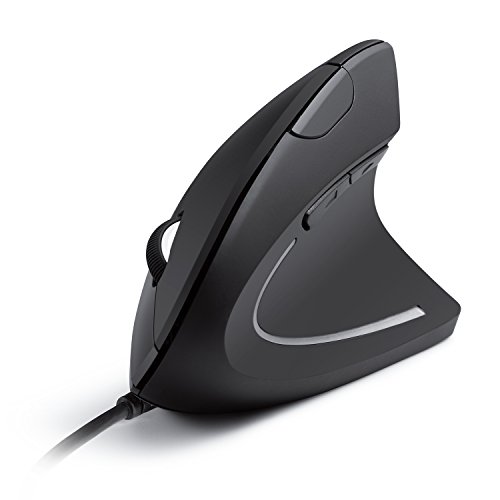


To clean a computer mouse, unplug it or switch it off, then wipe the shell with a slightly damp microfiber cloth and a drop of mild soap, clean the scroll wheel and gaps with a dry brush, and clear the sensor window with a dry swab. Do the outer surfaces first, then the openings, and let everything dry fully before you reconnect the mouse.
Most mice need only a light clean every few weeks, but the schedule depends on how you use yours. A mouse on a fabric desk mat in a dusty room collects grime faster than one on a hard pad in a clean office, and a mouse used for gaming or long work sessions picks up more skin oil. I based this guide on manufacturer manuals and spec sheets, published standards for USB and wireless charging, and widely documented PC cleaning practice.
Why and When to Clean Your Mouse
A mouse that looks fine can still be dirty where it matters. Skin oil and dust build up on the shell, crumbs and lint pack into the scroll wheel opening, and hair or grit collects around the sensor window on the underside. Those deposits change how the mouse feels and, in bad cases, how it tracks.
Clean the outside of your mouse every two to four weeks if you use it daily. Clean the sensor area and mouse feet whenever tracking feels jumpy or the mouse drags on the pad. If you eat at your desk, clean more often, because crumbs find every seam.
You do not need to open the mouse for routine cleaning. Opening the shell can void a warranty and risks damaging clips, so save that step for a mouse that is out of warranty and still misbehaving after a thorough external clean. For warranty questions, check the manufacturer terms first.
What You Need Before You Start
Gather these supplies before you touch the mouse. You probably have most of them at home, and none of them should cost much.
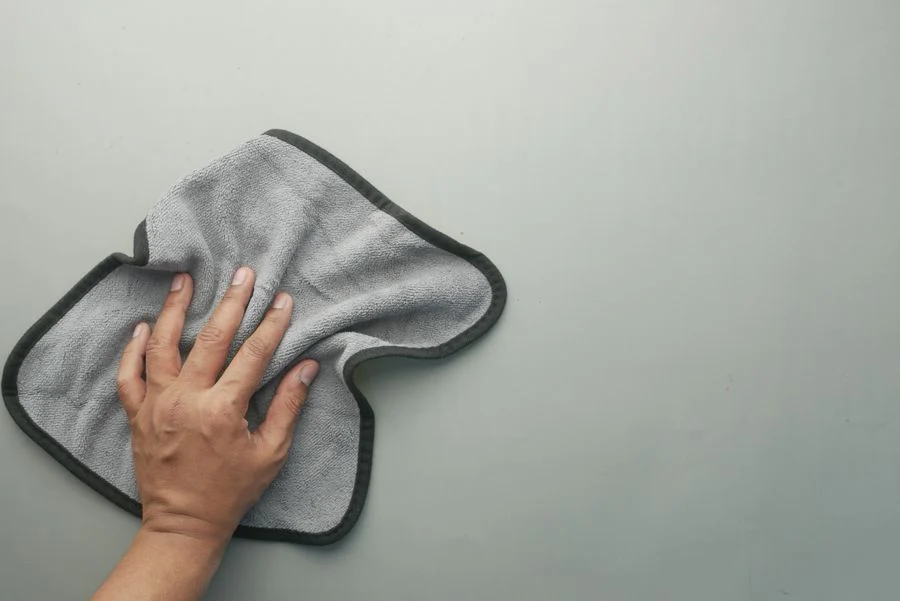
- Microfiber cloths, at least two so one stays dry
- Mild dish soap and a small bowl of water
- A soft brush, such as a clean toothbrush or a camera lens brush
- Cotton swabs
- Wooden toothpicks for gaps and seams
- Isopropyl alcohol at 70 percent or higher, used sparingly on a cloth, never poured
- Compressed air or a manual air blower
- Your mouse manual, if you still have it
Skip paper towels, which leave lint, and skip glass cleaner or any product with ammonia, which can cloud plastics. Do not spray anything directly onto the mouse. Put liquid on the cloth or swab first, and keep it barely damp.
If your mouse is wireless, have its charging cable or fresh batteries ready so you can test it after cleaning. If you are thinking about a different shape for long sessions, my roundup of vertical mice covers the ergonomic alternatives, and trackball mice suit anyone who wants to keep the wrist still.
Step by Step Mouse Cleaning
Work from the outside in, and keep liquids away from openings. The order below matters because you do not want to push loosened grit into the sensor or the scroll wheel.
- Unplug the mouse or switch it off. For a wired mouse, shut down the PC, switch off the power supply, and unplug the PC before you disconnect anything. For a wireless mouse, turn it off and remove the USB receiver or take out the batteries if the manual says to.
- Wipe the shell with a barely damp cloth. Add a drop of mild soap to a damp microfiber cloth, wring it out well, and wipe the top and sides. Follow with a dry microfiber cloth. Avoid soaking the seams and any fabric or rubber coating.
- Brush the scroll wheel and its opening. Use a dry soft brush to loosen dust and crumbs, then tilt the mouse and tap it gently over a trash can. A toothpick helps lift debris from the gap beside the wheel without forcing it inward.
- Clean the buttons and side grips. Run a dry swab or a soft brush along the seams around the main buttons and any side buttons. For sticky residue on smooth plastic, use a cloth with a little isopropyl alcohol, then wipe dry.
- Turn the mouse over and clear the sensor window. Use a dry cotton swab or a blast of air to remove dust from the sensor opening. Do not scrub the sensor with a wet swab, and do not insert anything into the opening.
- Clean the mouse feet and the underside. Wipe the glide feet with a dry cloth. If they feel rough, a swab with a little isopropyl alcohol can help, but check the manual first because some feet are sensitive to solvents.
- Let everything dry completely. Give the mouse ten to fifteen minutes in the open air before you reconnect it. Moisture inside the shell or on the sensor can cause erratic behavior.
- Reconnect and test. Plug the mouse back in or reinstall the batteries, then move the pointer across the screen and scroll a long page. If tracking still feels off, repeat the sensor step with a dry swab.
For a quick weekly refresh, you can skip the soap and do only the dry steps: brush the wheel, wipe the shell with a dry cloth, and clear the sensor. Save the full routine for when the mouse feels grimy.
| Part | Tool | What to avoid |
|---|---|---|
| Shell and buttons | Damp microfiber cloth, mild soap | Soaking seams, ammonia cleaners |
| Scroll wheel | Dry soft brush, toothpick | Pushing debris inward, wet swabs |
| Sensor window | Dry swab or air blower | Liquid, sharp tools, scrubbing |
| Mouse feet | Dry cloth, sparing alcohol | Solvents on sensitive feet |
| Cable or charging port | Dry brush, air blower | Bending pins, liquid in the port |
Common Mistakes to Avoid
Most mouse damage during cleaning comes from a handful of habits. Watch for these before you start.
- Spraying cleaner directly on the mouse. Liquid runs into the scroll wheel, buttons, and sensor, and it can short a circuit or leave residue. Always apply cleaner to the cloth or swab first.
- Using too much water. A cloth that drips is too wet. Wring it until it is barely damp, and keep moisture away from every opening.
- Blasting air into the sensor or scroll wheel at close range. Compressed air held too close can push grit deeper or damage delicate parts. Use short bursts from a few inches away, and keep the can upright.
- Opening the shell for routine cleaning. Clips break, screws strip, and warranties can be voided. Clean the outside first, and only consider opening a mouse that is out of warranty and still faulty.
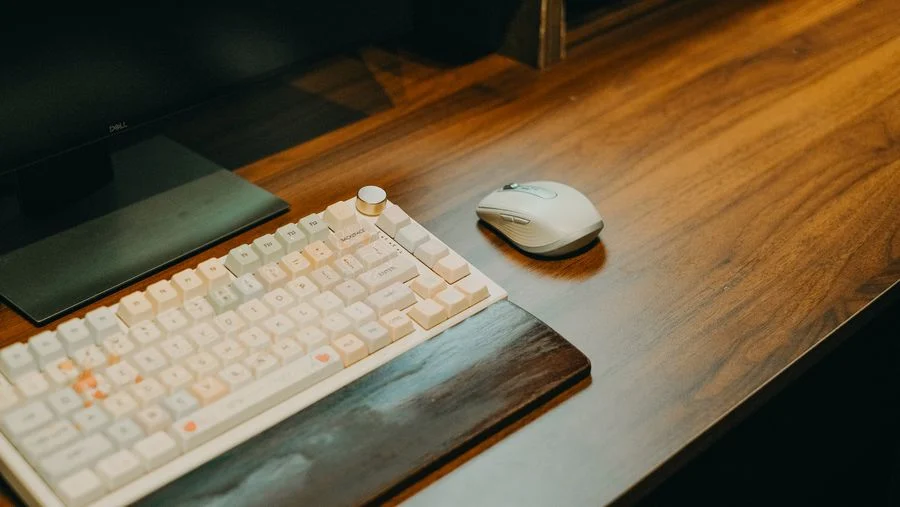
- Skipping the mouse pad and desk. A clean mouse on a dirty pad picks up grime again within days. Wipe the pad and the desk surface as part of the same routine.
When to Stop Cleaning and Get Help
Cleaning fixes dirt, not hardware faults. If the pointer still jumps after a full clean, or if a button double-clicks on its own, the switch or sensor may be failing. Replacing the mouse is often the practical answer, and the manufacturer warranty is the first place to check.
Stop and seek service if you see a swollen battery, a cracked shell, or a charging port that no longer holds a cable. Do not keep using a mouse with a damaged battery, and do not attempt a repair that the manual does not cover. For any pain or discomfort in your hand or wrist, talk to a doctor or physical therapist rather than treating a new mouse as a cure.
Frequently Asked Questions
Can I clean my mouse with alcohol wipes?
Alcohol wipes are fine on smooth plastic shells if you keep them away from seams, rubber coatings, and the sensor. Wipe the surface and let it dry, then follow with a dry cloth. Check the manual first, because some finishes and grips react badly to solvents.
How often should I clean my computer mouse?
A light external clean every two to four weeks keeps most mice in good shape. Clean the sensor and feet whenever tracking feels jumpy, and clean more often if you eat at your desk or have pets. Daily gaming or long work sessions may justify a weekly dry brush.
Why does my scroll wheel feel sticky or jumpy?
Dust, lint, and skin oil collect in the wheel opening and cause that gritty feel. Brush the gap with a dry soft brush and lift debris with a toothpick, then tap the mouse over a trash can. If the wheel still skips after cleaning, the encoder may be worn.
Can I wash a mouse with water?
Do not run a mouse under water or dunk it, even if the shell looks sealed. Use a barely damp cloth on the outside only, and keep liquid away from the scroll wheel, buttons, sensor, and ports. Let the mouse dry fully before reconnecting it.
Final Thoughts
The most important habit is a dry-first routine: brush and wipe the outside, clear the sensor with a dry swab, and use liquid only on a barely damp cloth. That approach handles most dirt without risking the electronics.
Clean the mouse pad and desk at the same time, and your mouse will stay clean longer. If tracking problems survive a full clean, treat it as a hardware question, not a cleaning one.