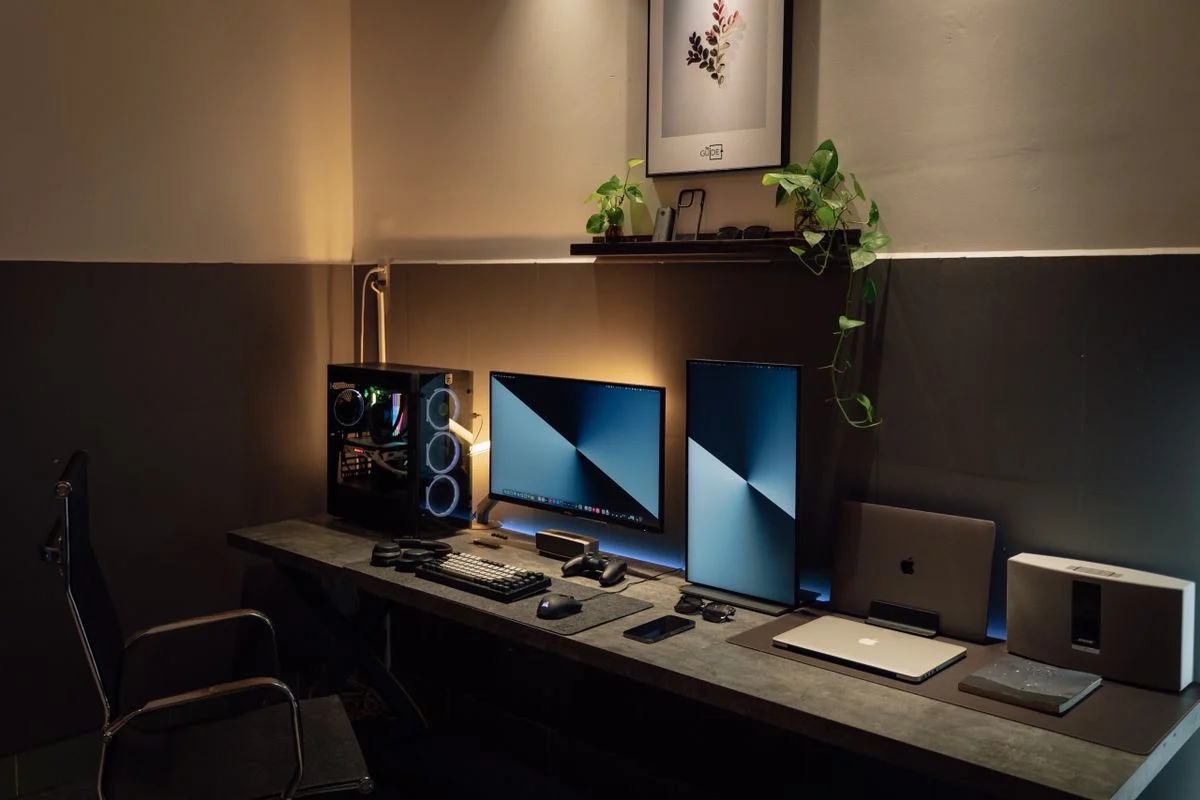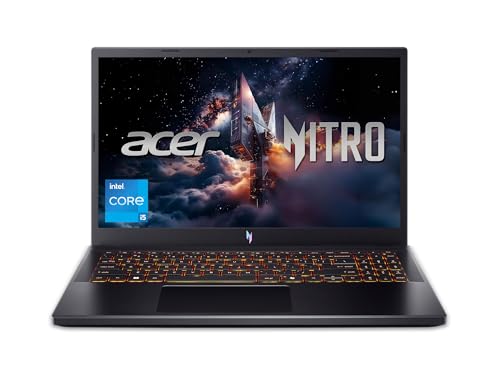


To keep a gaming laptop cool, you need to do three things: give it unobstructed airflow, stop feeding it unnecessary heat, and manage the power and fan settings that control how hard it works. Most overheating problems come from a blocked intake or exhaust, a laptop sitting on a soft surface, or dust buildup inside the vents.
You do not need exotic hardware to fix this. A hard flat surface, a few minutes with a can of compressed air, and a sensible power profile will solve most heat issues. I based this guide on manufacturer manuals and spec sheets, published standards such as PCIe, USB, and ATX, and widely documented PC building practice.
Why Heat Matters and When to Act
A gaming laptop packs desktop-class components into a thin chassis, so heat is unavoidable. The question is whether that heat leaves the machine or builds up inside it. When internal temperatures rise past the design limits, the laptop throttles its processor and graphics chip to protect itself. You feel that as stuttering frame rates, longer load times, and fans that never seem to quiet down.
Sustained heat also ages hardware faster. The lithium-ion battery in particular dislikes high temperatures, and a laptop that constantly runs hot can see reduced battery capacity over time. Act when you notice any of these signs:
- The chassis or palm rest feels uncomfortably warm during normal use.
- Fans run at full speed within minutes of starting a game.
- Frame rates drop after a few minutes of play and recover when you pause.
- The laptop shuts down or restarts without warning during heavy loads.
- You hear rattling or grinding from the fans, which suggests debris or a failing bearing.
If the laptop is brand new and already hot, start with airflow and settings before assuming a defect. If it is several years old, dust and dried thermal paste are the usual suspects. The steps below work for both Intel and AMD machines, and for Windows or macOS, though the menu names differ.
What You Need Before You Start
Gather these items first so you are not hunting for tools mid-task. You probably own most of them already.
- A hard, flat surface such as a desk or a lap desk with a rigid top.
- A can of compressed air or a small air blower for vents and fan intakes.
- A soft brush or microfiber cloth for loosening dust.
- The laptop maker's manual or support page for your exact model, which lists vent locations and approved power settings.
- A cooling pad if you want extra airflow, especially for long sessions or warm rooms.
- A room thermometer or a sense of your room temperature, since ambient heat changes everything.
You do not need to open the laptop for routine cleaning. Most makers consider opening the bottom panel a user-serviceable task, but check your manual first because some warranties require professional service. If you want to compare airflow-focused stands and pads, my roundup of cooling pads for gaming laptops covers the main styles.
One more item worth having: a note of your laptop's model number and the maker's support link. If a fan fails or the battery swells, you will want that information ready.
Step by Step: How to Keep a Gaming Laptop Cool
Work through these steps in order. The first few cost nothing and often solve the problem on their own.
- Move the laptop to a hard, flat surface. Fabric, bedding, and your lap block the bottom intakes. A desk or a rigid lap desk lets air enter and exit freely. Keep at least a couple of inches of clearance around the rear and side vents.
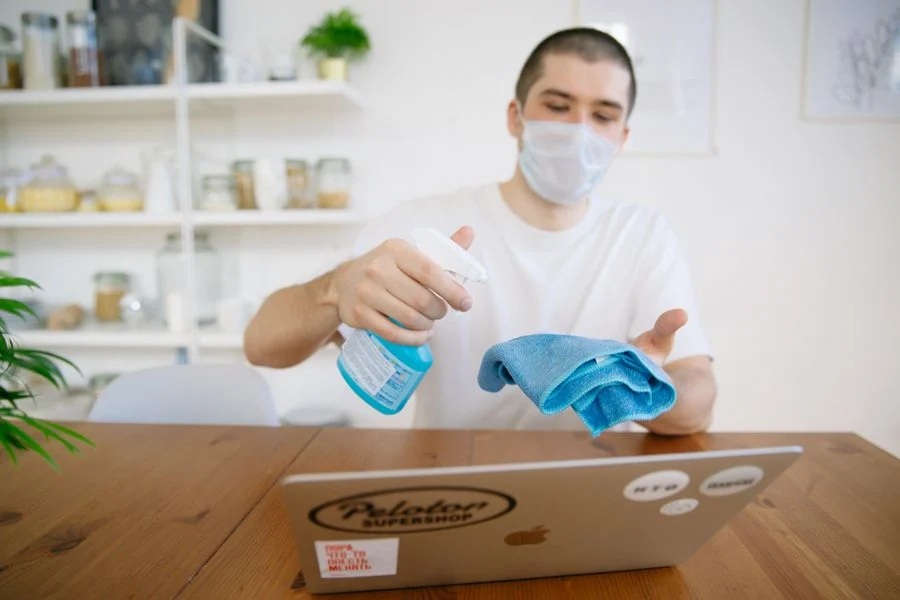
- Check the vents and clear dust. Shut down, unplug the charger, and look at every intake and exhaust. Short bursts of compressed air from a few inches away loosen dust without spinning the fans too fast. Hold fan blades gently if the air makes them spin. Do this monthly in a dusty room, less often in a clean one.
- Raise the rear of the laptop slightly. A stand or even a small wedge tilts the chassis so the bottom intakes get more air. This is the single easiest upgrade for most desks. If you want a purpose-built option, see my roundup of cooling pads for gaming laptops.
- Set a sensible power profile. In Windows, use the manufacturer's control app or the Windows power settings to pick a balanced profile for everyday work and a performance profile only when gaming. On macOS, check the Energy settings and any maker utility. Higher power limits mean more heat, so match the profile to the task.
- Cap frame rates and resolution where it helps. Running a game at a lower frame cap or a lower resolution reduces load on the graphics chip and lowers heat. Use in-game settings or the graphics driver control panel. This is a trade-off: you lose some smoothness or detail in exchange for a cooler, quieter machine.
- Keep the room cool and the laptop out of direct sun. Ambient temperature matters more than most people expect. A warm room raises every internal temperature. Do not place the laptop near a radiator, a space heater, or a sunny window.
- Update drivers and firmware. Graphics drivers and laptop firmware include fan curve and power management fixes. Use the maker's official update tool rather than third-party driver packs. Check the support page for your model.
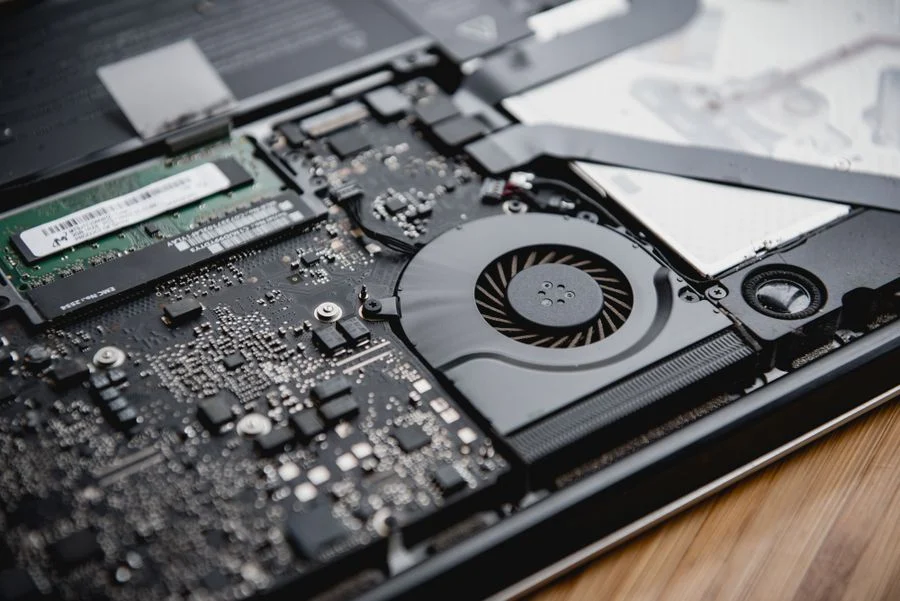
- Clean the fans more deeply if dust persists. If short bursts of air are not enough, follow the manual to remove the bottom panel and clear the fan blades and heatsink fins with a soft brush and air. Do not touch the thermal paste or heatsink unless you know the procedure for your model.
- Reapply thermal paste only if you are comfortable doing it. On older laptops, dried paste is a common cause of high temperatures. This is an advanced step: follow a model-specific guide, use the paste type the maker specifies, and stop if anything looks damaged. If you are not confident, have a repair shop do it.
- Watch the battery. If the battery looks swollen, smells odd, or the chassis bulges, stop using and charging the laptop immediately. A swollen, punctured, or overheating lithium-ion battery is a fire risk. Never puncture or press on the battery. Use only the charger the maker specifies, and take old batteries to a battery recycling drop-off rather than the trash.
After each step, run a game or a heavy task for a few minutes and listen. Quieter fans and steadier frame rates mean you are moving in the right direction. If nothing changes after the first four steps, the problem is likely internal and worth a closer look.
Common Mistakes That Make Heat Worse
These are the errors that undo your good work. Avoid them and your laptop will run cooler with less effort.
- Using the laptop on a bed, couch, or blanket. Soft surfaces seal the bottom intakes and trap heat. This is the most common cause of sudden overheating in normal use.
- Blocking the rear exhaust with a wall or monitor. Pushing the laptop back against a wall or under a shelf recirculates hot air. Leave open space behind the machine.
- Running the highest power profile all the time. Maximum performance modes raise heat and fan noise even for browsing and video. Switch profiles to match the task.
- Ignoring dust for months. Dust blankets heatsink fins and slows fans. A quick monthly air burst prevents most buildup, and skipping it is the main reason older laptops overheat.
- Stacking the laptop on another hot device or inside a closed drawer. Heat sources add up, and enclosed spaces trap warm air. Keep the laptop on its own open surface.
One more mistake worth naming: overtightening or forcing panels during cleaning. Plastic clips break easily, and a cracked vent or fan housing makes airflow worse. If a panel resists, check the manual for the correct order of screws and clips.
When to Call a Professional
Most cooling maintenance is DIY-friendly, but some situations call for a repair technician. Contact the maker's service center or a reputable repair shop if any of these apply:
- The battery is swollen, the chassis bulges, or you smell a chemical odor. Stop using and charging the device and seek service immediately.
- A fan rattles, grinds, or stops spinning. A failed fan needs replacement, and continuing to run the laptop can cause overheating damage.
- The laptop shuts down under load even after cleaning and airflow fixes. This can point to a hardware or thermal paste problem that needs diagnosis.
- You are not comfortable opening the bottom panel or reapplying thermal paste. A technician can do it without risking clips, screws, or the heatsink.
- The laptop is under warranty and the maker requires authorized service for internal work. Check the manufacturer's terms before you open anything.
For warranty, software licensing, and data privacy questions, read the manufacturer or software publisher terms. If you are shopping for a laptop that stays cooler in a dorm or small desk, my roundup of gaming laptops for college students covers airflow-friendly designs and practical trade-offs.
Frequently Asked Questions
Does a cooling pad really help a gaming laptop?
A cooling pad helps when it raises the laptop and feeds cool air to the bottom intakes, which most gaming laptops need. It helps less if your laptop pulls air mainly from the sides or rear. Choose a pad with fans aligned to your model's intakes.
How often should you clean gaming laptop fans?
Clean the vents and fan intakes about once a month in a dusty home, and every few months in a clean room. Short bursts of compressed air are enough for routine care. Deep cleaning with the bottom panel removed depends on your model's manual.
Is it bad to use a gaming laptop on a bed?
Using a gaming laptop on a bed is a common cause of overheating because fabric blocks the bottom intakes and traps hot air. Use a hard, flat surface or a rigid lap desk instead. If you must use a soft surface, put a board or tray underneath.
Why does my gaming laptop get hot even when idle?
A laptop that runs hot at idle usually has a background process, a high power profile, or blocked airflow. Check for updates and runaway apps, switch to a balanced power profile, and make sure the vents are clear. Persistent idle heat can also point to dust or a failing fan.
Final Thoughts
The most important takeaway is simple: airflow first. A hard flat surface, clear vents, and a sensible power profile solve most heat problems before you spend anything on accessories. Clean the dust regularly and watch for battery swelling, which is a safety issue rather than a performance one.
If you want extra help, a stand or cooling pad is a reasonable next step, and a professional can handle fan or thermal paste work when you are not comfortable doing it yourself. Keep the machine breathing and it will stay quieter and steadier for longer.