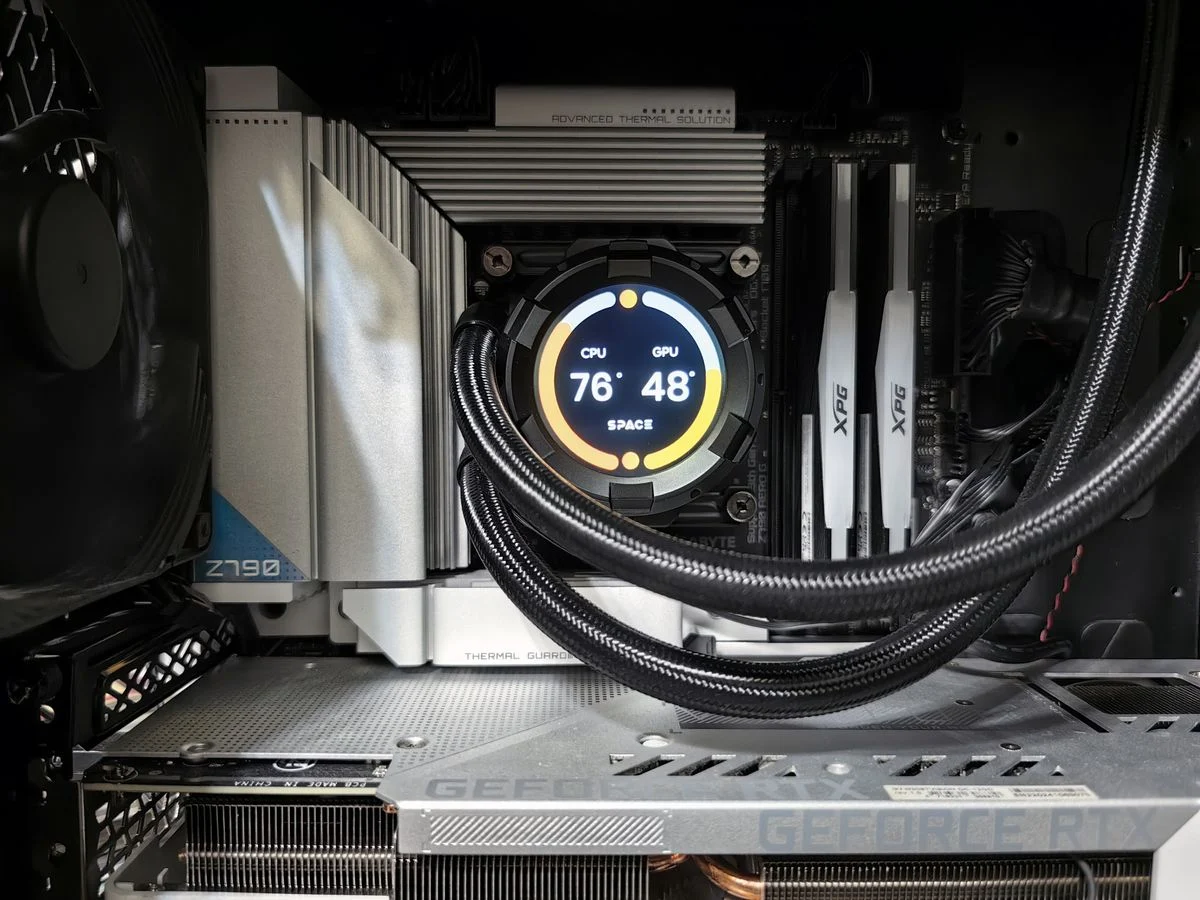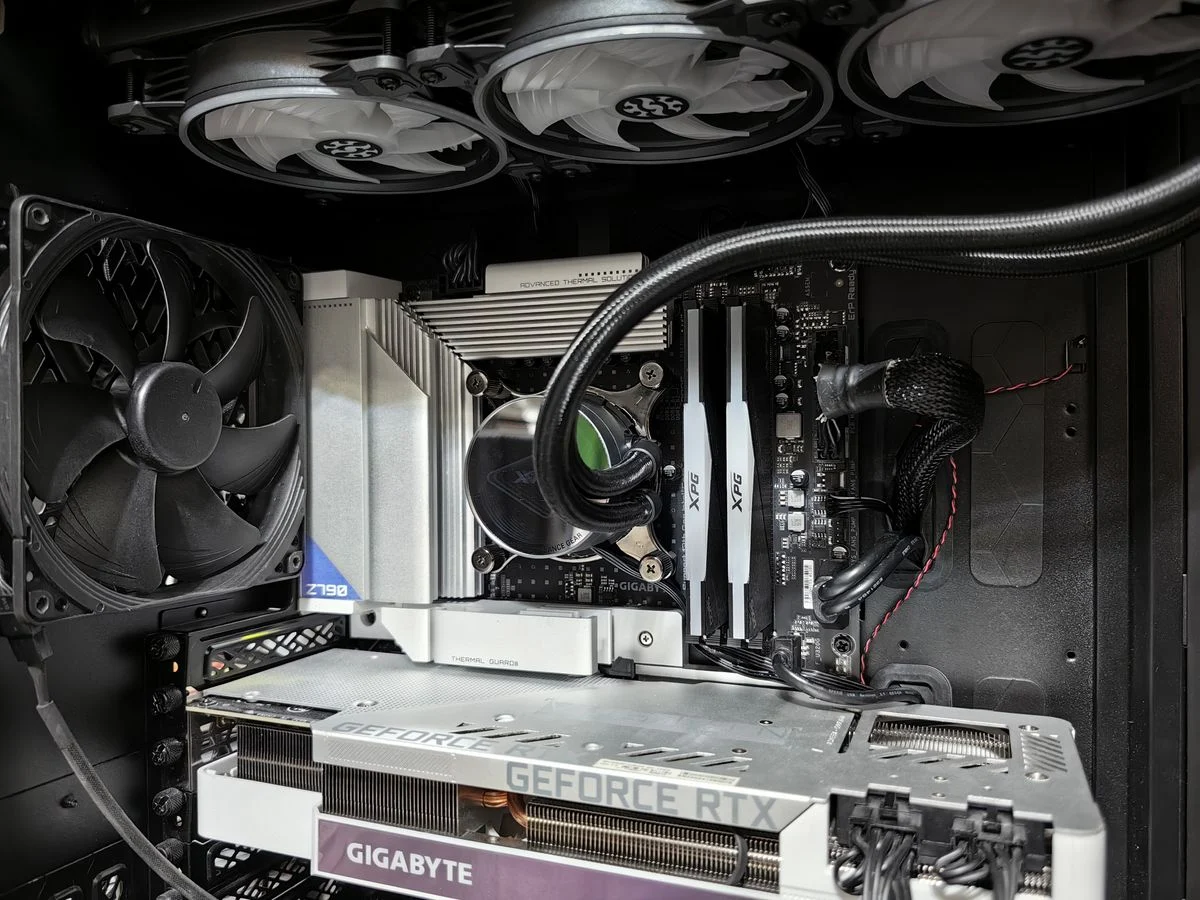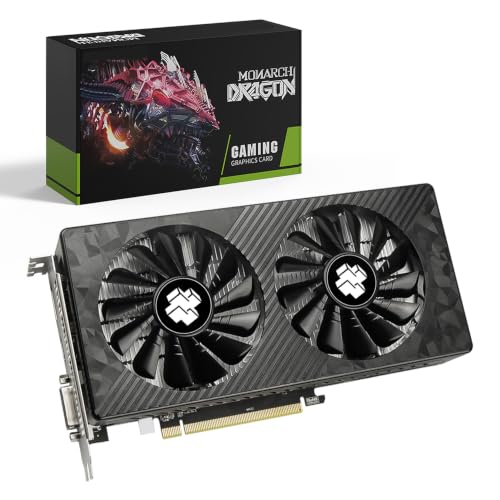


The short answer is that neither Nvidia nor AMD wins every category. Pick Nvidia if you want the broadest feature set and strong ray tracing support, or pick AMD if you want strong raster performance and open software support at a given tier.
Your monitor, your CPU platform, and the games or apps you run matter more than brand loyalty. I based this guide on manufacturer manuals and spec sheets, published standards such as PCIe, USB, and ATX, and widely documented PC building practice.
Nvidia vs AMD Graphics Cards at a Glance
The table below compares the two brands across the criteria that affect most buying decisions. Treat it as a starting point, then check the exact card's spec sheet for connectors, power requirements, and dimensions before you buy.
| Criterion | Nvidia | AMD |
|---|---|---|
| Driver and software polish | Mature control panel and frequent feature updates | Solid Adrenalin software with a straightforward layout |
| Ray tracing and upscaling | Broad ray tracing support and DLSS upscaling | Ray tracing support with FSR upscaling, which runs on more hardware |
| Raster performance per tier | Varies by generation and model | Often competitive or ahead in pure raster at a given tier |
| Power and heat behavior | Check the card's spec sheet for power draw and recommended PSU | Check the card's spec sheet for power draw and recommended PSU |
| Platform support | Works on Windows and Linux with proprietary drivers | Works on Windows and Linux with open source drivers |
| Monitor features | Supports G-Sync compatible displays and HDMI 2.1 on newer cards | Supports FreeSync displays and HDMI 2.1 on newer cards |
| Software ecosystem | Broad support for creative apps and CUDA workloads | Growing support for creative apps and ROCm workloads |
| Price to performance | Compare street prices at the tier you want | Compare street prices at the tier you want |
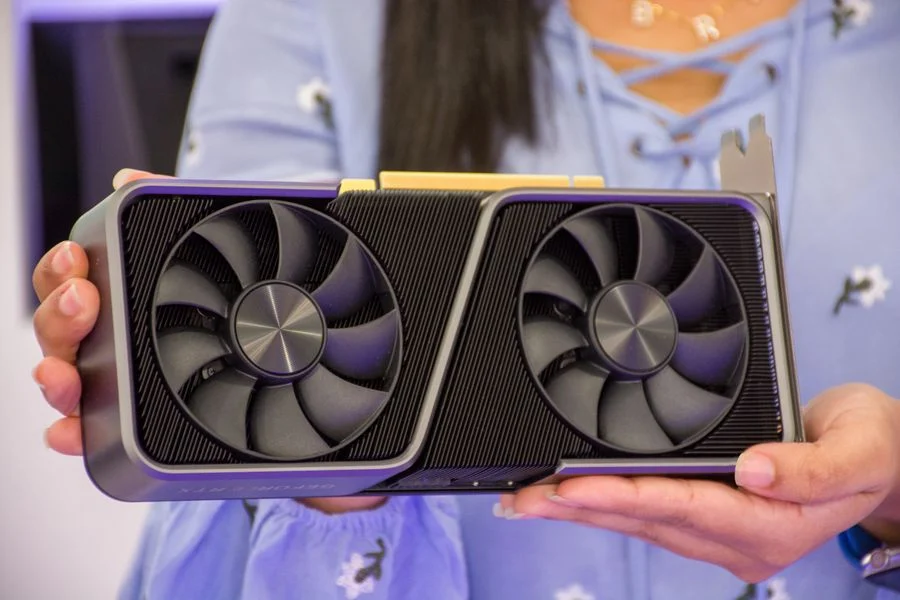
Key Differences That Affect Your Build
The biggest practical differences show up in drivers, features, and how each brand handles power and platform support. None of these differences is absolute, and they shift with each hardware generation.
Drivers and Software
Nvidia's driver stack is mature and its control panel is familiar to most builders. AMD's Adrenalin software is clean and includes useful tools, but some features arrive later or vary by card. Either way, install the latest driver from the manufacturer's site and follow the installer prompts.
Ray Tracing and Upscaling
Nvidia cards generally offer broader ray tracing support and DLSS upscaling in more titles. AMD cards support ray tracing too, and FSR upscaling runs on a wider range of hardware, including some older cards. If ray tracing is a priority, check the specific game's support list before you buy.
Power, Cooling, and Case Fit
Power draw and heat output vary by model, not just by brand. Check the card's spec sheet for recommended PSU wattage, connector type, and length, then confirm clearance in your case. A card that fits one case may not fit another with the same nominal dimensions.
Platform and Monitor Support
Both brands work on Intel and AMD platforms, and both support Windows and Linux. Monitor features differ: Nvidia cards pair with G-Sync compatible displays, while AMD cards pair with FreeSync displays. Check your monitor's spec sheet for supported refresh rates and connectors.
If you are shopping for a specific resolution, my roundup of graphics cards for 1440p gaming can help you compare models at that tier.
How to Choose Without Regret
Start with your monitor and your software, then work backward to the card. A card that matches your display's resolution and refresh rate will serve you better than one that exceeds it and leaves budget for nothing else.
- Check your monitor's resolution, refresh rate, and connector type.
- List the games and apps you use most and note whether they support ray tracing or upscaling features.
- Confirm your case clearance and PSU connectors from the case and PSU manuals.
- Compare the exact card's spec sheet for length, slot width, and power requirements.
- Update your motherboard BIOS only if the manufacturer recommends it, and never interrupt a BIOS update.
Before you open your case, shut down the PC, switch off the PSU, and unplug it. Ground yourself by touching bare metal on the case or by wearing an anti-static wrist strap. Follow the motherboard and component manuals for slot placement and connector orientation.
Common mistakes include buying a card that is too long for the case, ignoring the PSU's connector count, and assuming a monitor's advertised feature works without checking the spec sheet. Another mistake is skipping the driver clean install when switching brands.
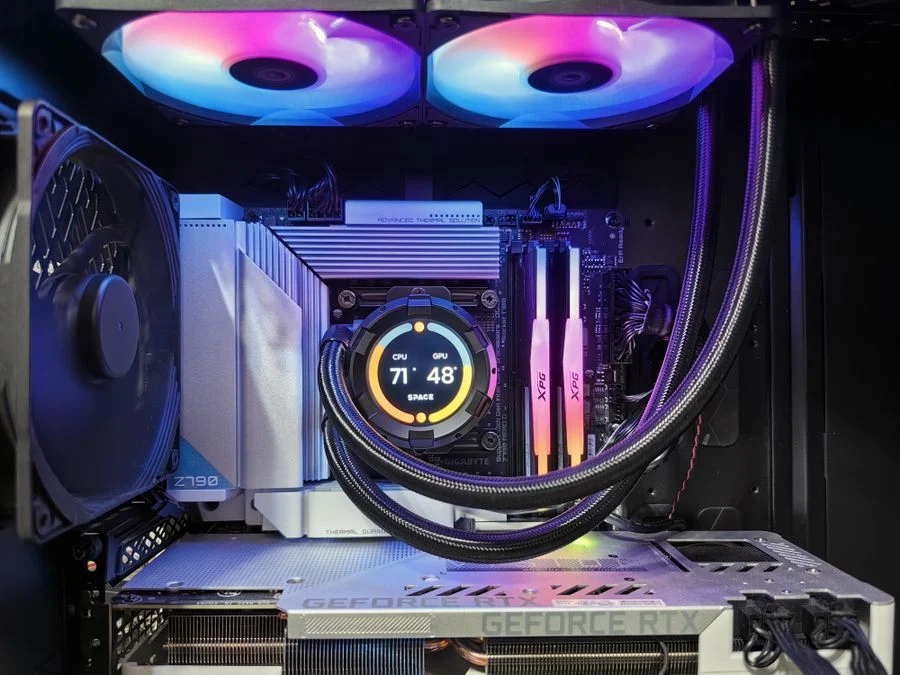
Which One Should You Choose
Choose the brand that fits your monitor, your software, and your case, not the one with the louder marketing. The lists below summarize the practical cases for each.
Choose Nvidia If
- You want broad ray tracing support and DLSS upscaling in the games you play.
- You use creative apps that rely on CUDA acceleration.
- You already own a G-Sync compatible monitor.
- You prefer a mature driver control panel and frequent feature updates.
Choose AMD If
- You want strong raster performance at your budget tier.
- You value open source driver support on Linux.
- You already own a FreeSync monitor.
- You want FSR upscaling to work across a wider range of hardware.
If you are undecided, pick the card that matches your monitor's resolution and refresh rate first, then compare features. You can skip the brand debate entirely if one card clearly fits your case, PSU, and software needs.
Frequently Asked Questions
Is Nvidia or AMD better for gaming?
Neither brand is better for every game. Nvidia offers broader ray tracing and DLSS support, while AMD often competes strongly in raster performance. Match the card to your monitor and the titles you play.
Do AMD graphics cards work with Intel CPUs?
AMD graphics cards work with Intel CPUs and motherboards. The card connects through the PCIe slot, and you install the AMD driver from the manufacturer's site. Check the motherboard manual for slot and BIOS requirements.
Can I use a FreeSync monitor with an Nvidia card?
Many FreeSync monitors work with Nvidia cards as G-Sync compatible displays, but support varies by model. Check the monitor's spec sheet and the manufacturer's compatibility list before you buy.
What should I check before switching graphics card brands?
Check case clearance, PSU connectors and wattage, and monitor features first. Then uninstall the old driver, shut down and unplug the PC, and ground yourself before removing the card.
Final Thoughts
The most important takeaway is that your monitor, software, and case constraints should drive the decision more than brand. Compare the exact card's spec sheet and confirm compatibility before you buy.
Pick the card that fits your build and the way you actually use it, and you will spend less time second-guessing the brand.